
Managing your transactions
Merchants can use the new transactions page in TaxCloud as a central hub for viewing, searching, and managing all transactions uploaded to your account across various connections, countries, and tax statuses. This updated version gives you visibility into your sales activity so that you can reconcile reports, validate tax collection, and troubleshoot order issues.
The previous (legacy) transactions page is still available for merchants who need time to transition or who rely on workflows that have not yet moved to the new interface. You can continue accessing the old Transactions page while becoming familiar with the updated experience. However, all new enhancements including AI Search, improved filtering, and consolidated upload tools are available only in this new version.
This guide explains what’s available in the new Transactions page, how to navigate its features, and how to work with the data and actions provided.
Overview of the Transactions page
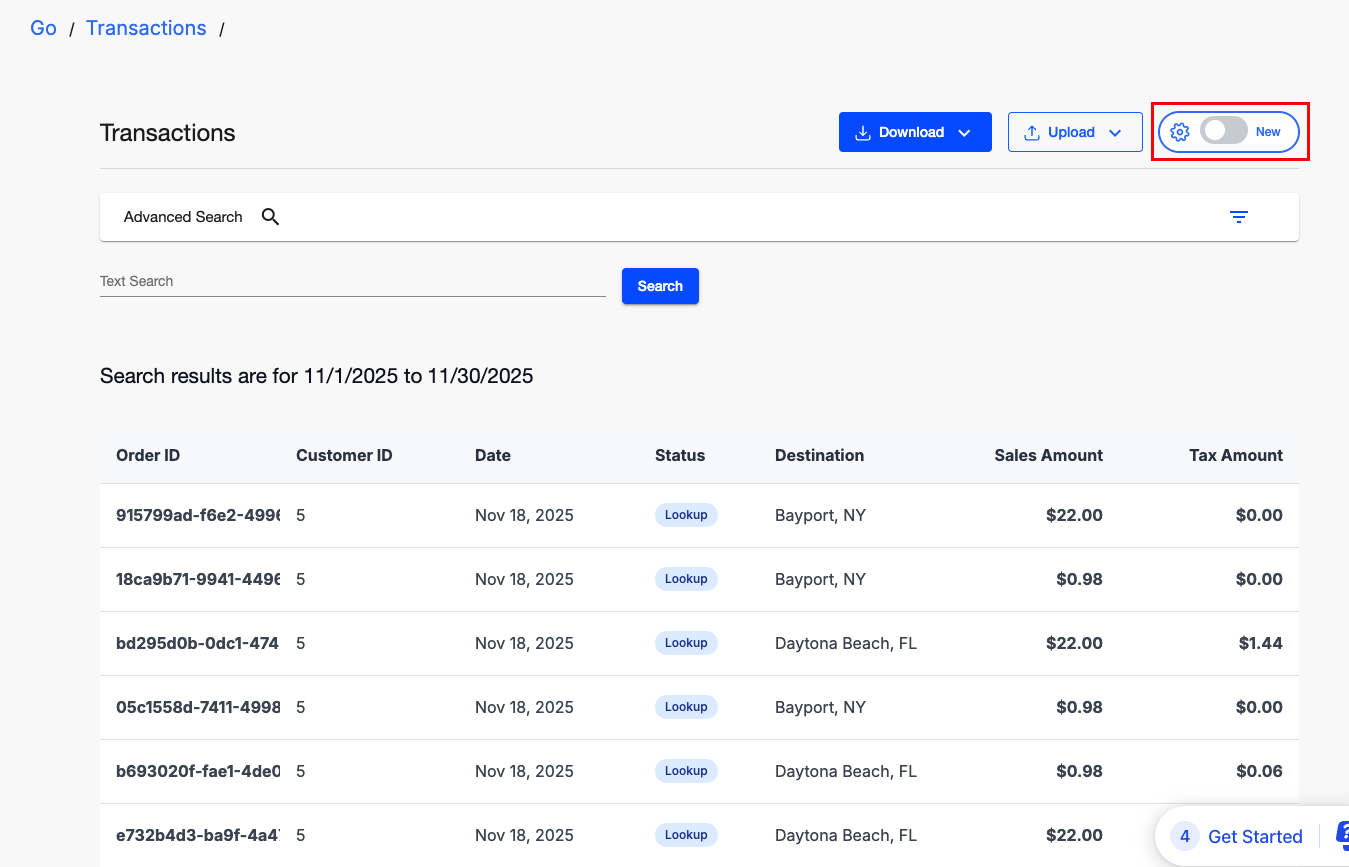
By default, merchants are taken to the legacy (old) transactions page when navigating from the TaxCloud app homepage. However, TaxCloud now has an updated transactions page.
To switch to the new Transactions page:
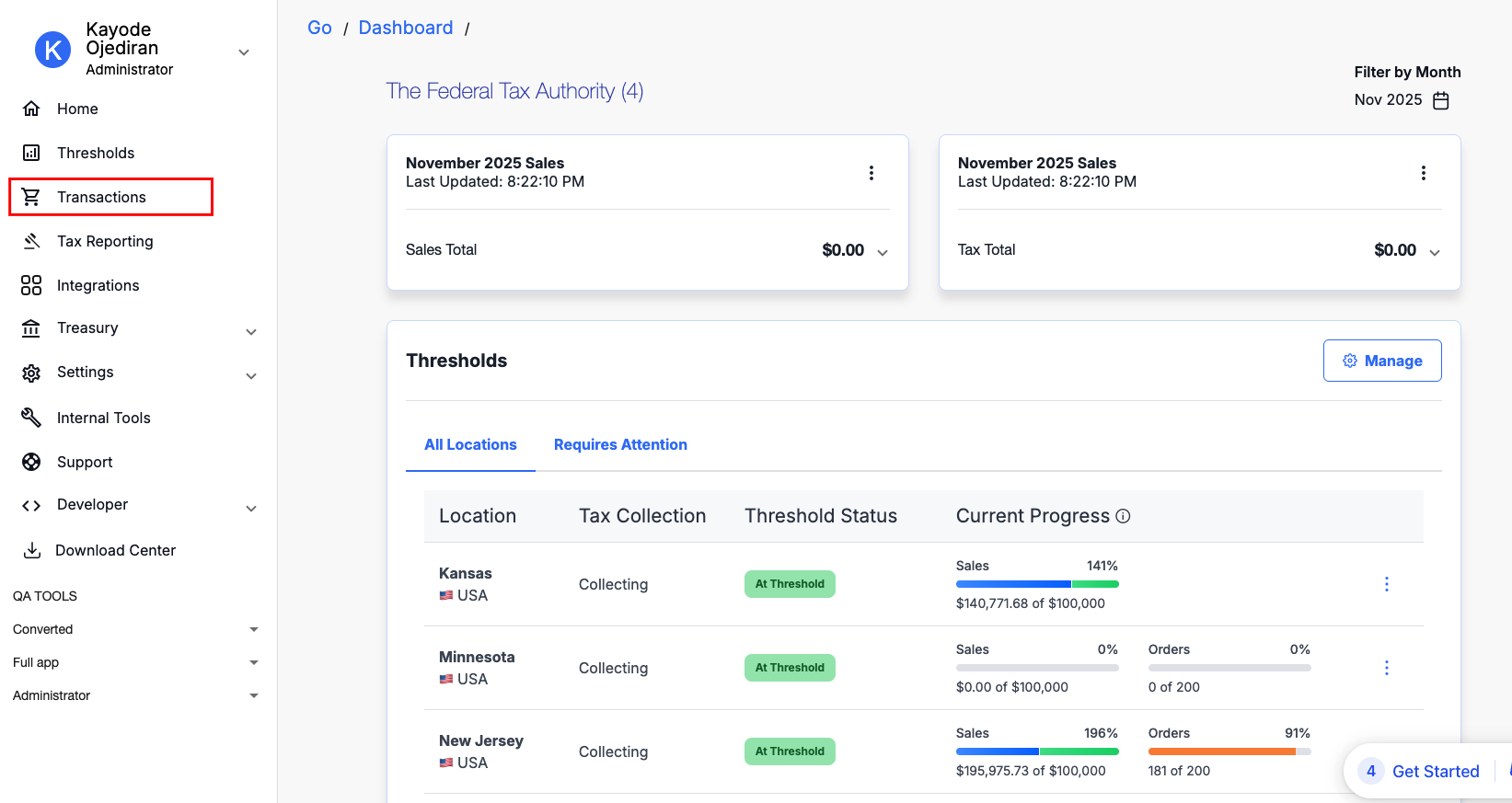
Go to Transactions using the menu on the left side of the app.
In the top-right corner of the page, click the settings (toggle) icon.
Turn the toggle on to enable the new Transactions experience. Once the toggle is on, you’ll be viewing the new page.
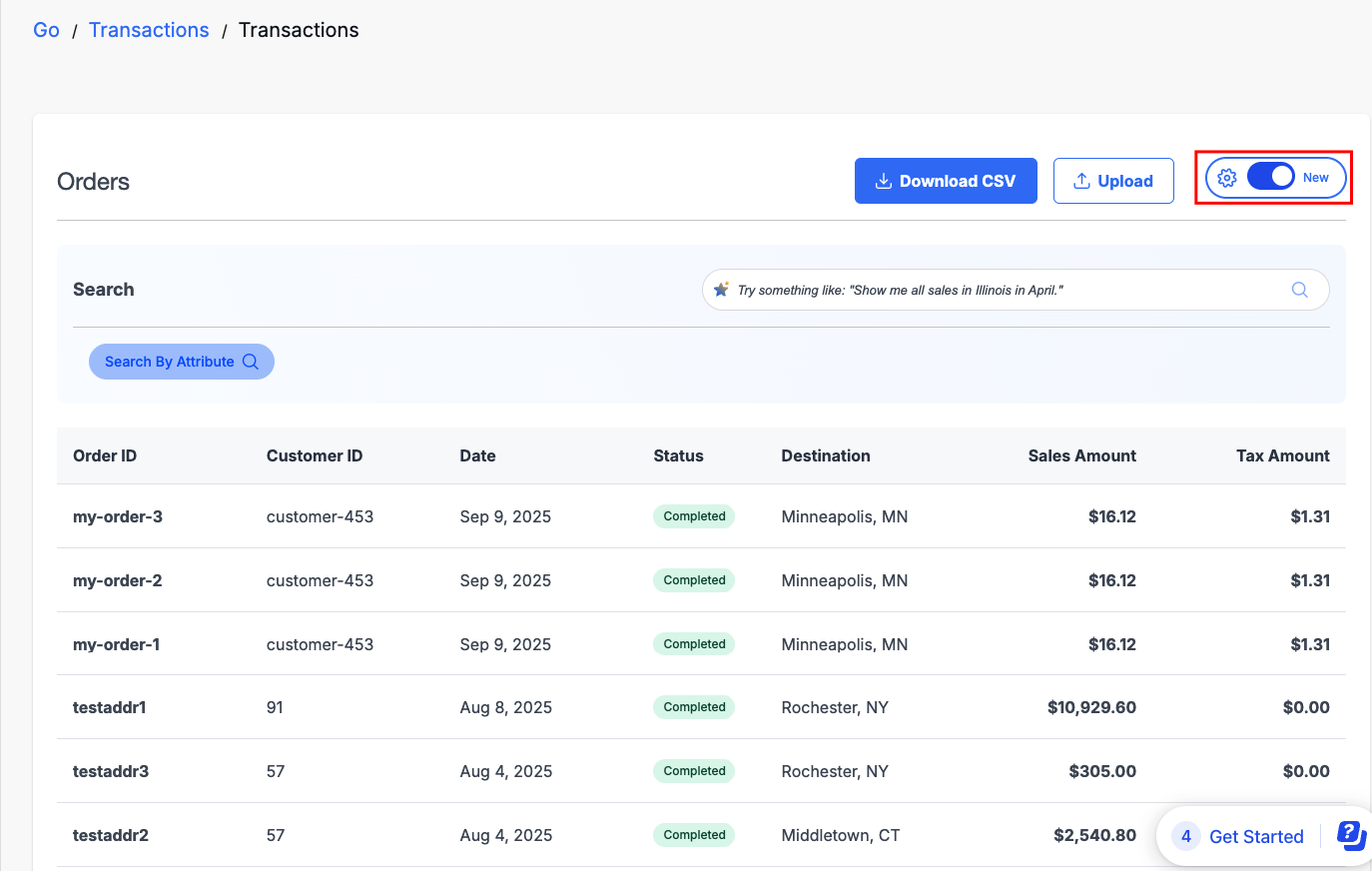
If you need to return to the legacy version at any time, simply switch the same toggle off.
On this page, you can:
- Use search & filters – Apply AI search or manual filters to quickly find transactions.
- View your transaction list – Displays all matching results, with sortable columns.
- Download transaction details – Export all or filtered transactions out of TaxCloud.
- Use the upload menu – Accessed through the Upload button dropdown, which allows you to:
- Upload CSVs (bulk import transactions)
- Add a manual transaction (create a one-off record)
Reports
Please note that the Transaction Summary and Transaction Detail reports available in the earlier version of the transactions page have been removed. If you need to access these reports, utilize the Download Center tab.
Searching and Filtering Transactions
You can locate specific records on the transactions page in two ways: AI Search and Keyword Search (labelled as Search by Attribute). Both methods are designed to help you quickly navigate large sets of data and drill down into the exact transactions you need.
AI Search
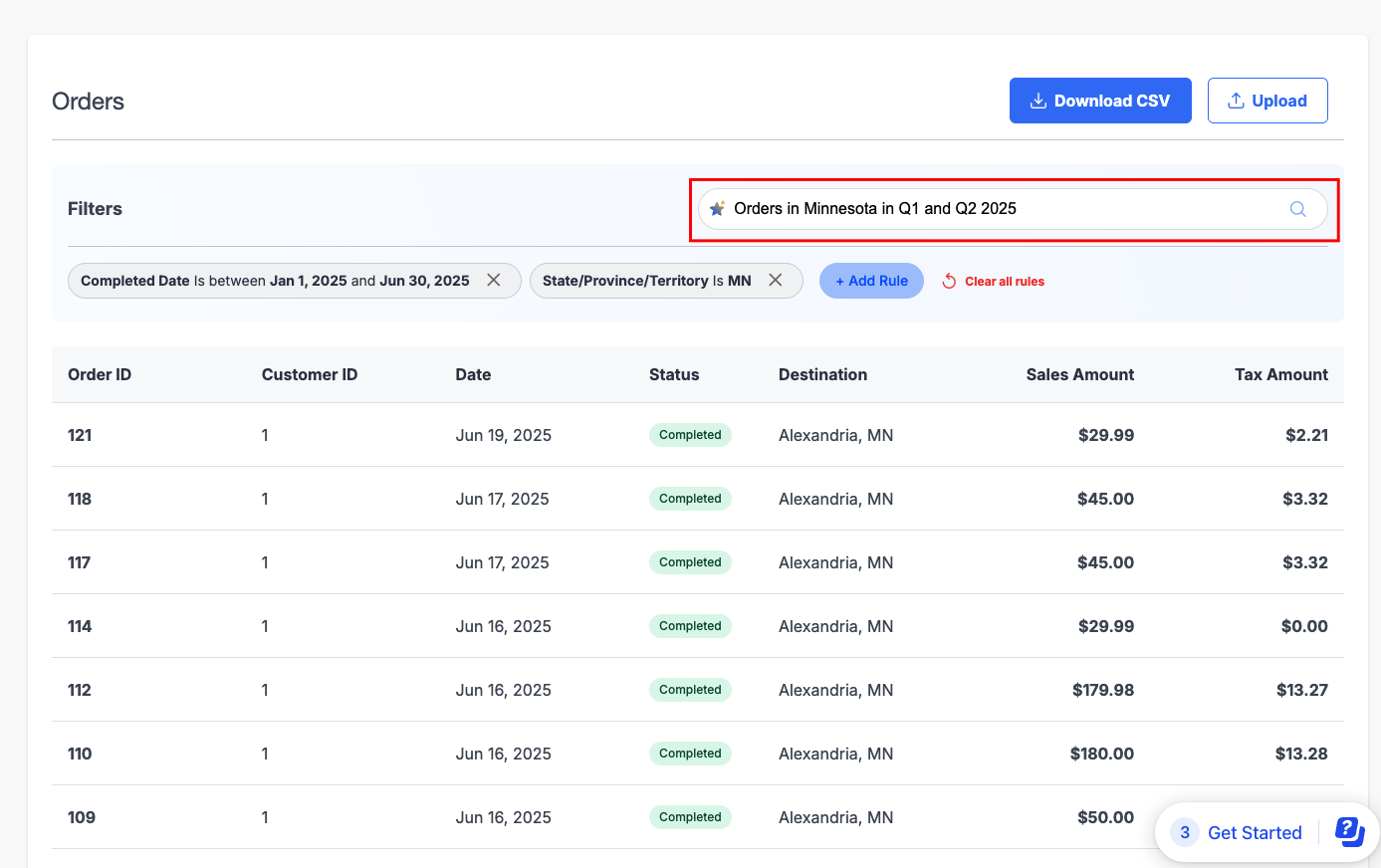
The AI-powered search bar allows you to type queries in plain, natural language instead of manually setting multiple filters. For example, entering a query such as “January 2025 returns” will automatically apply a date filter for January 1–31 and a return status filter . Similarly, searching “Orders in California in Q1” applies two filters at once:
- Location filter: Orders in California
- Date filter: January 1st to March 31st 2025
This makes it easier to perform complex searches without needing to know the exact filter settings in advance. Once the AI has applied the initial filters, you can refine the results further by adding new filters or removing ones you don’t need.
Keyword Search (labelled as Search by Attribute)
If you already know specific details about the order you are looking for, such as the order ID, customer name, or other transaction identifiers, you can use the keyword search instead. This method is more exact and is often faster when you’re tracking down a particular record rather than looking for patterns or groups of transactions.
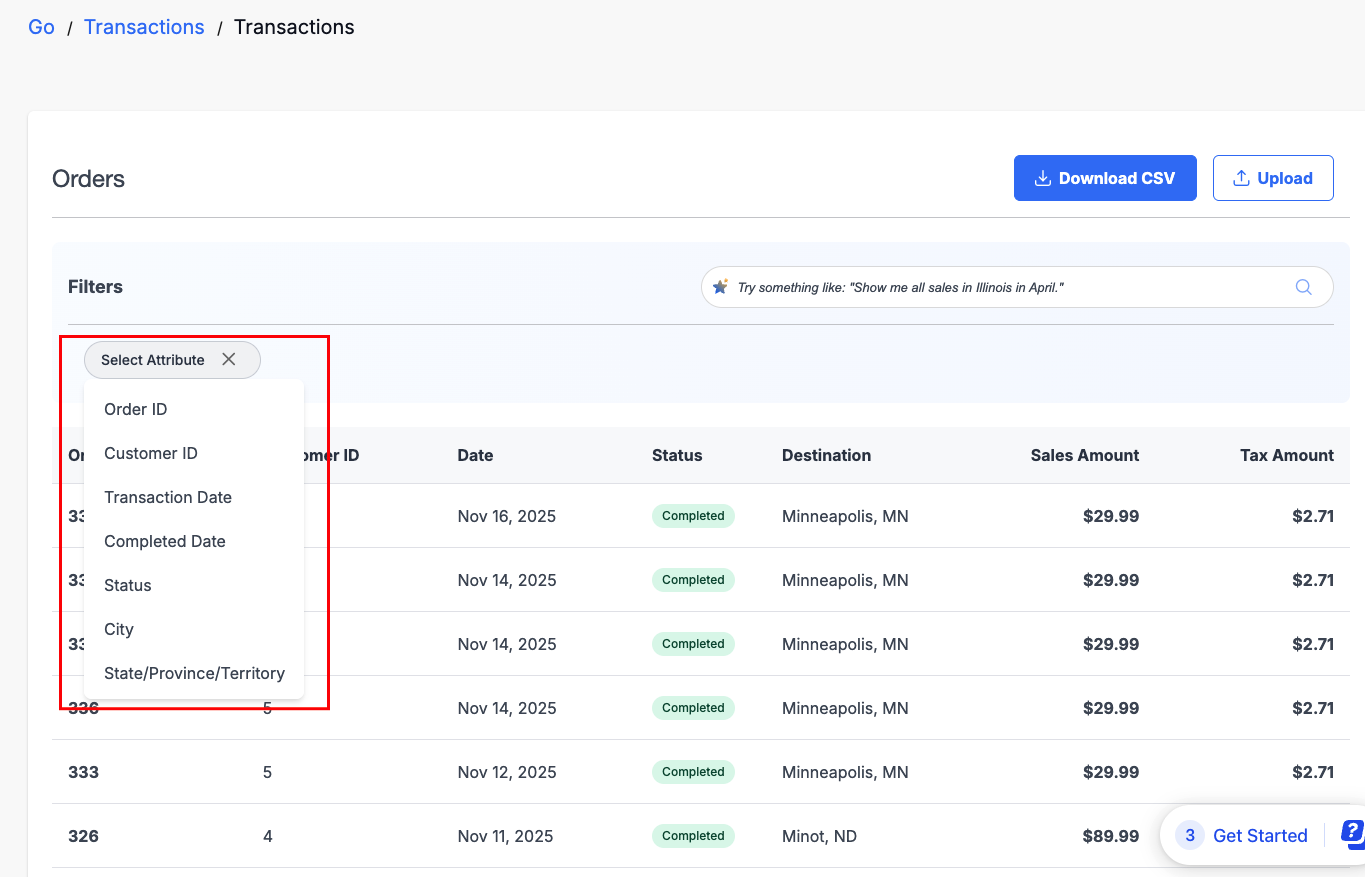
The available flexible set of filters that help you narrow down results include:
- Order ID – Search for a specific transaction using its unique identifier. Ideal when you know the exact order you want to find.
- Customer ID – Filter transactions by the unique identifier assigned to a customer. Useful for quickly finding all orders associated with a specific customer.
- Transaction Date – Locate transactions based on the date they were created or processed. Helps narrow results to a specific day or range.
- Completed Date – Find transactions according to when the order was finalized or shipped. Useful for tracking completed sales activity.
- Tax Total – Filter transactions by the total amount of tax collected. This is helpful for auditing or reconciling tax reporting.
- Sales Amount – Search for transactions based on the total sales value. Supports review of high-value orders or revenue analysis.
- City – Narrow results to transactions shipped to or originating from a particular city. Useful for validating jurisdiction-based taxes.
- State/Province/Territory – Filter orders by the state, province, or territory of the shipping address. Ensures accurate tax review by jurisdiction.
- Transaction Status – Refine transactions by their current lifecycle stage:
- Created – Orders that have been initiated but not finalized.
- Completed – Orders that have been finalized or shipped.
- Returned – Orders that have been refunded or returned.
- Late – Orders that were completed after their expected processing or shipping timeframe.
- Date Range – Transactions can be searched from the current year and the previous completed calendar year. For example, if you are searching on August 5, 2025, you can retrieve results as far back as January 1, 2024.
- Connection – You can filter by a specific integration or connection to isolate transactions flowing through that channel. This filter works regardless of the connection’s status, whether it is live, in test mode, or disabled.
- Country – Transactions can be limited by jurisdiction, allowing you to view only U.S. transactions or only Canadian transactions.
Viewing transaction details
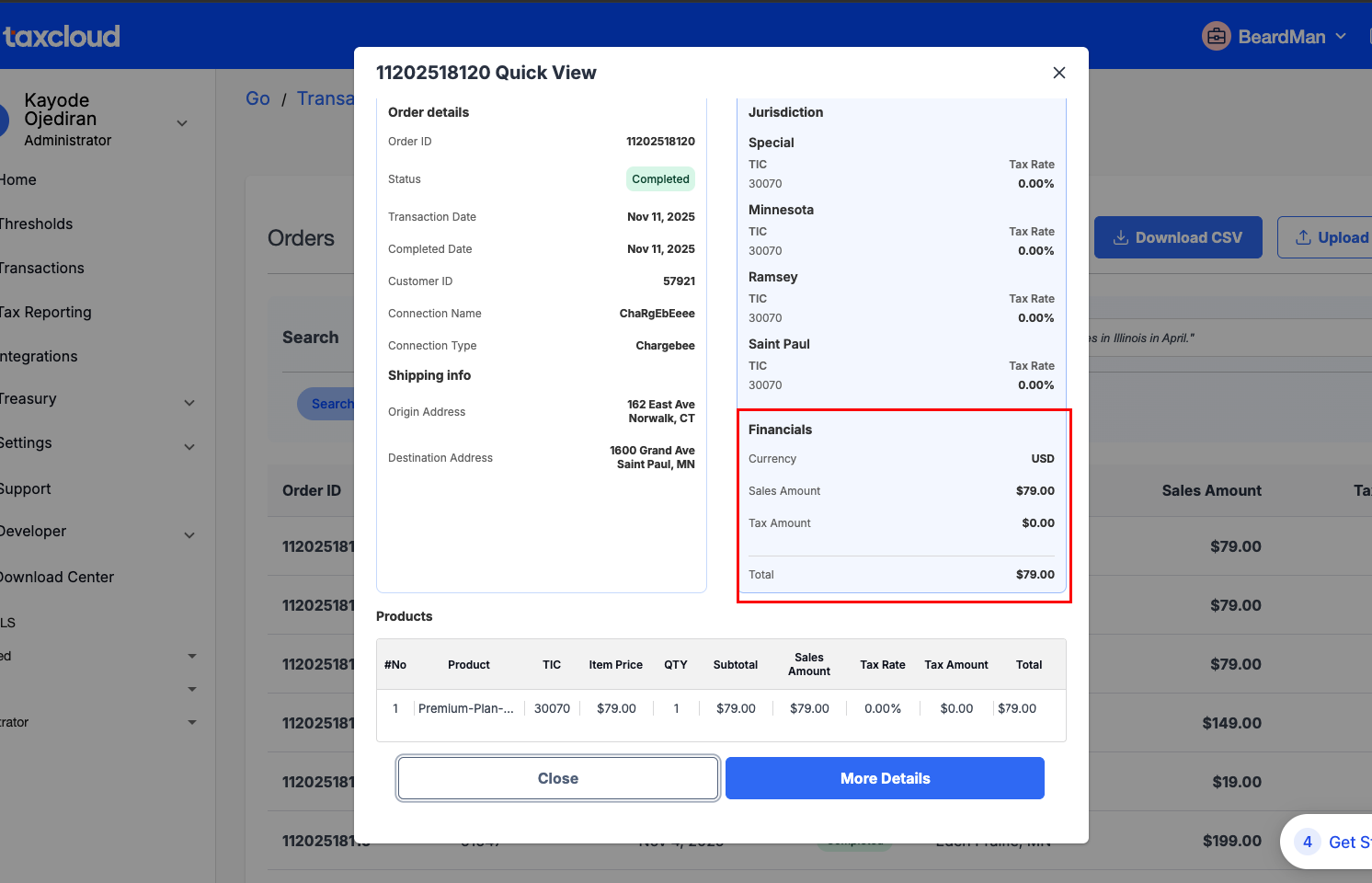
Clicking on any transaction opens the details of that transaction. This detail includes a full breakdown of the order, including order metadata, customer details, tax calculations, and line item summaries. It is designed to give merchants complete visibility into how a transaction was processed within TaxCloud.
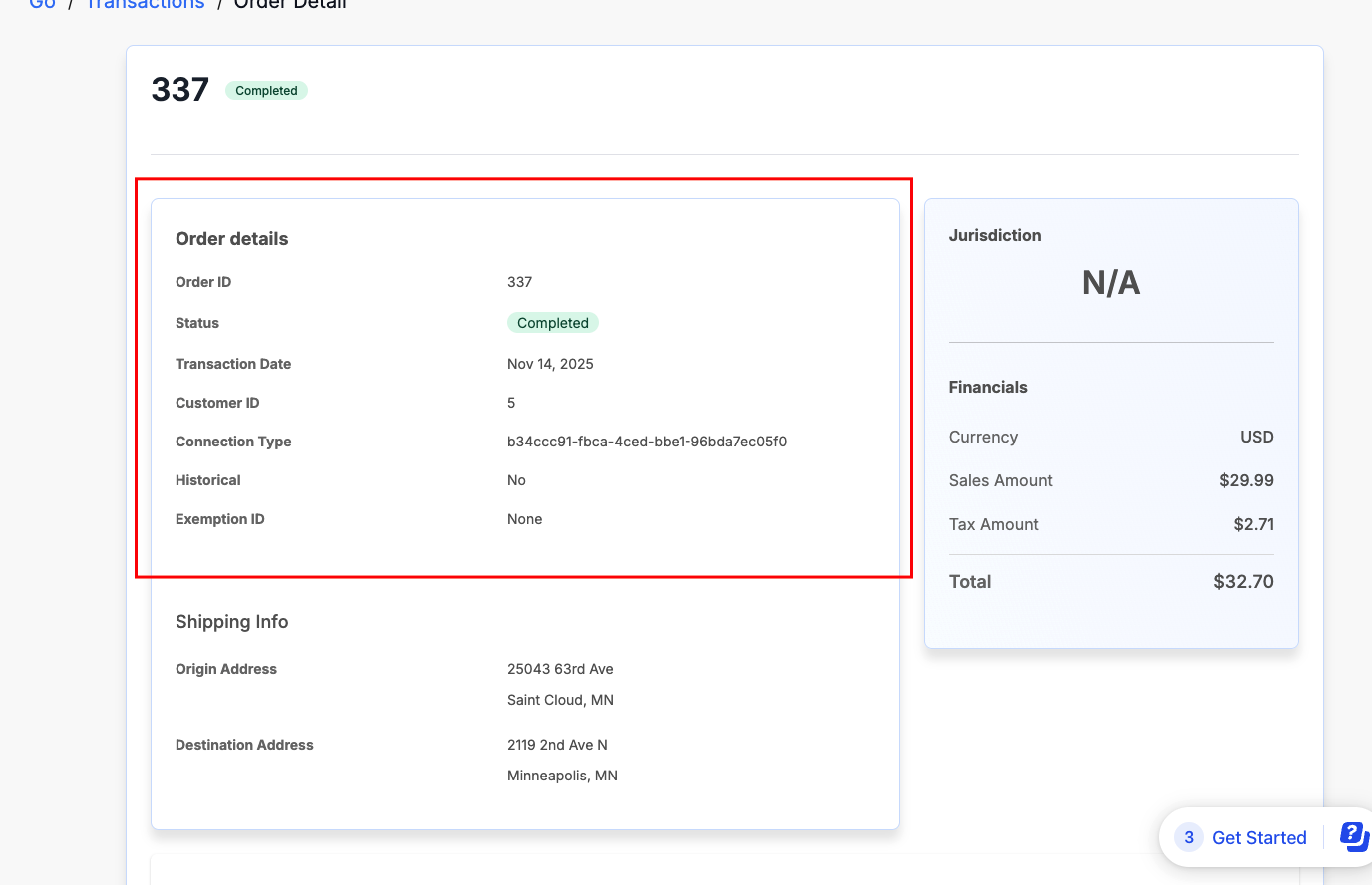
Order details
At the top of the page, you’ll find the core order information, including the Order ID and its current status (for example: Captured, Recalculated, or Not Collected). Additional metadata such as the transaction date, completed Date, customer ID, and the connection ID used to process the order are also displayed here. If the order was flagged as historical, this will be clearly marked. For tax-exempt orders, the associated exemption information and exemption ID are listed.
Shipping information
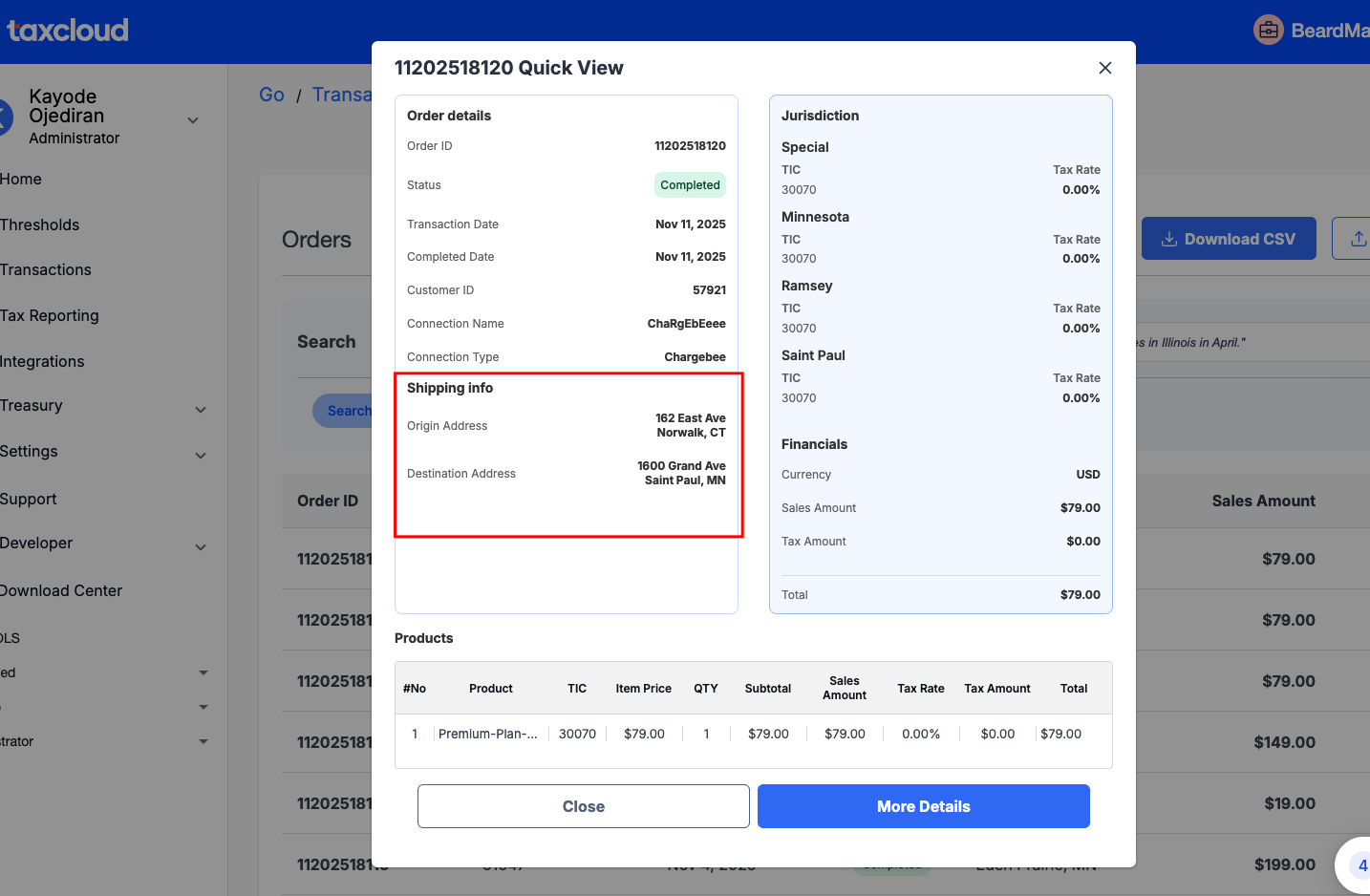
The shipping section shows the addresses involved in the order:
- Origin address – where the order was shipped from.
- Destination address – where the order was delivered.
This information is particularly useful for validating jurisdiction-based tax calculations.
Jurisdiction breakdown
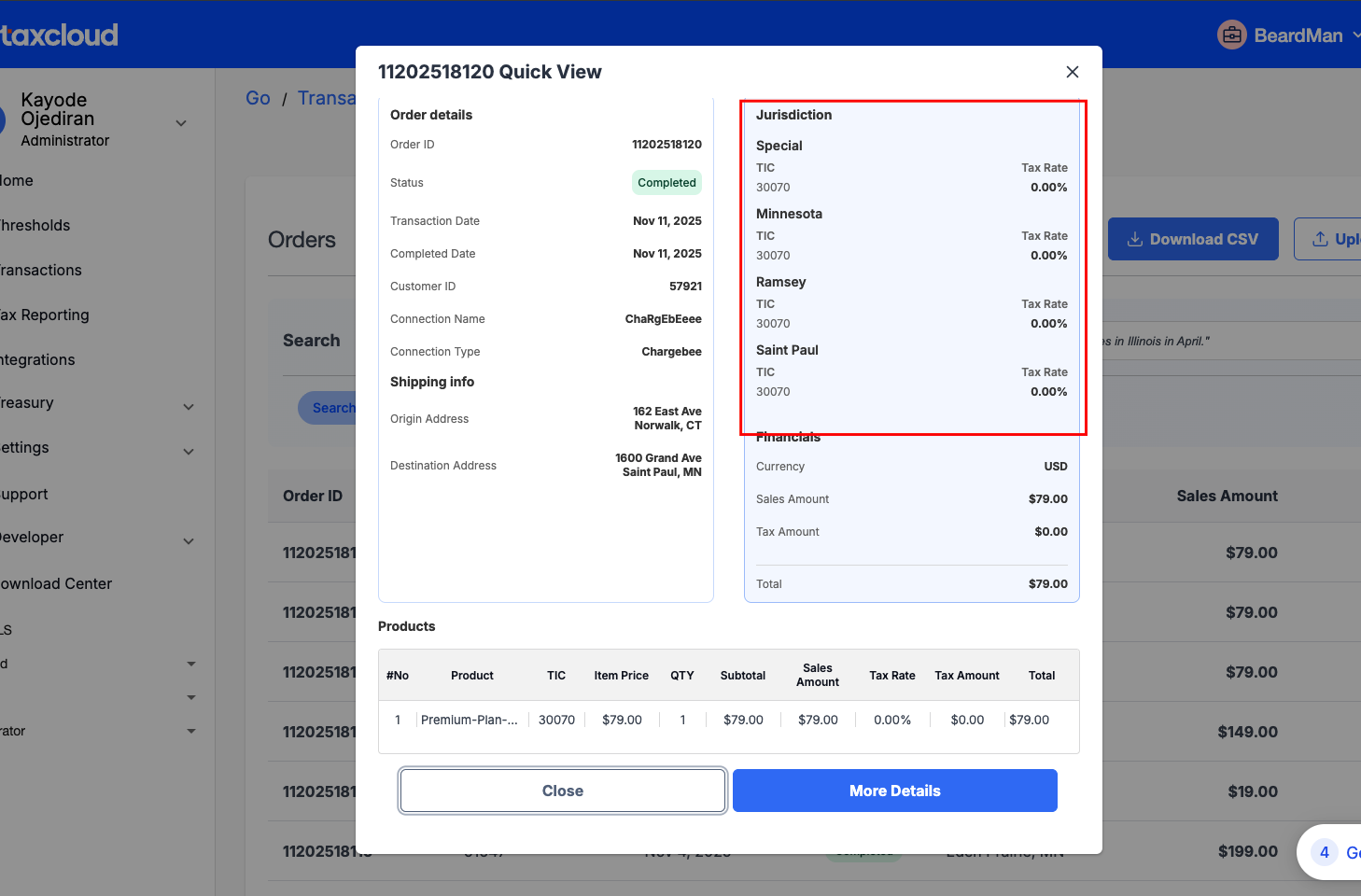
TaxCloud provides a detailed jurisdiction-level view of the transaction. Here, you’ll see which state, county, and city jurisdictions applied, along with the Taxability Information Code (TIC) for each item. The applicable tax rate and tax amount for each jurisdiction are clearly displayed, ensuring full transparency into how the tax was determined.
Financial summary
The financial summary consolidates the monetary details of the transaction. It shows the sales amount, tax amount, and the total order value. This section provides a quick, high-level view of the financial outcome of the order without needing to calculate totals manually.
Transaction Line Items
Each line item in the order is broken out for detailed review. For every product, you’ll see:
- Product ID – The unique identifier for the product or item in the transaction. Helps track sales at the individual product level.
- Assigned TIC – The Taxability Information Code (TIC) assigned to the product, indicating how tax should be applied based on its category.
- Price and Quantity – The unit price of the product and the quantity purchased. Used to calculate the line subtotal before tax.
- Subtotal before Tax – The total cost of the product line before any taxes are applied (Price × Quantity).
- Applied Tax Rate – The tax rate used to calculate tax for this specific product line. Varies by jurisdiction and product category.
- Calculated Tax Amount – The total tax charged for this product line, based on the applied tax rate and subtotal.
- Line Total (Subtotal + Tax) – The final total for the product line, including both the subtotal and calculated tax.
This breakdown helps merchants trace how tax was applied at the product level, making it easy to audit or confirm calculations.
Returns tab
The Returns tab provides visibility into refunds or adjustments associated with the order. Merchants can use this tab to reconcile returned items against the original order.
Important!
The Transaction Details page is read-only. Merchants cannot edit or adjust transaction data here. Any corrections or changes must be handled outside of this page.
Using the Upload button
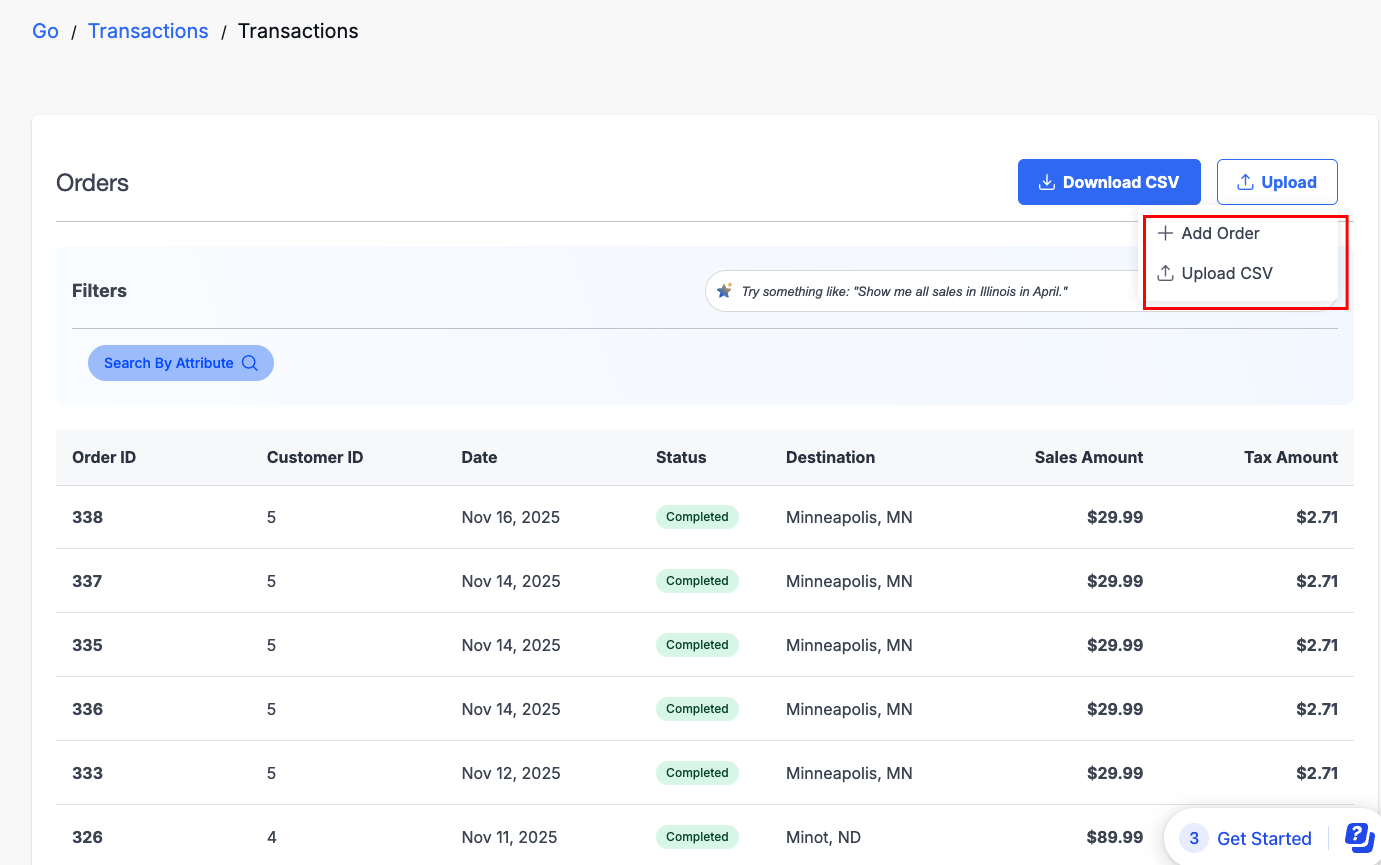
At the top of the Transactions page, you’ll find the Upload button. This button gives you two options for adding transactions to your account: uploading in bulk via a CSV file or adding an order manually. Both options are accessed through the dropdown menu on the Upload button.
Upload CSVs
If you need to add multiple transactions at once, choose CSV Upload from the dropdown. This option allows you to import a file containing a batch of transactions directly into your account. CSV uploads are ideal for reconciling data from external systems, migrating historical transactions, or catching up on orders that were not automatically sent through a connection.
Once uploaded, the transactions will appear in your Transactions list and can be filtered, searched, and reviewed just like other transactions.
Add a Manual Transaction
For one-off entries or testing purposes, select Add Order from the Upload dropdown. This option lets you create an individual transaction by entering the order details directly in TaxCloud. Manual transactions are useful for testing tax calculations, adding transactions that weren’t captured through your integrations, or correcting gaps in your data without needing to prepare a CSV file.
By consolidating these actions under the Upload button dropdown, the Transactions page provides merchants with a flexible way to keep their transaction history complete and accurate, whether they are working with a single order or a large batch.
Downloading Transactions
Merchants can now export transaction data using the Download button on the Transactions page. Exports give you a flexible way to work with your data outside of TaxCloud.
Exports reflect filters and searches you’ve applied so you don't need to download the full dataset, but only data relevant to your task. For example, if you filter by “Completed” transactions or restrict the date range to a specific quarter, your export file will reflect only those transactions. You, however, need to apply at least one filter before downloading.
Common Use Cases
Merchants typically use the Transactions page to:
- Reconcile sales tax reports – Match transactions against monthly or quarterly reports.
- Validate tax collection – Confirm that tax was applied correctly by jurisdiction.
- Troubleshoot order issues – For example, quickly identify whether tax was charged on a disputed order.
- Review marketplace and Canadian sales – These transactions are now fully visible.
- Check historical data – Access orders from the prior completed calendar year.
Conclusion
The Transactions page brings all of your order activity into one place, giving you the tools to search, filter, and analyze transactions with precision. By combining AI-powered search, flexible filters, detailed transaction views, and export options, it equips you to stay on top of sales tax compliance and maintain accurate records. When reconciling reports, validating tax collection, or resolving order-level questions, you obtain the clarity and control you need to manage your sales with confidence.